Lovable web app to mobile app: publish on iOS and Android with Median.co
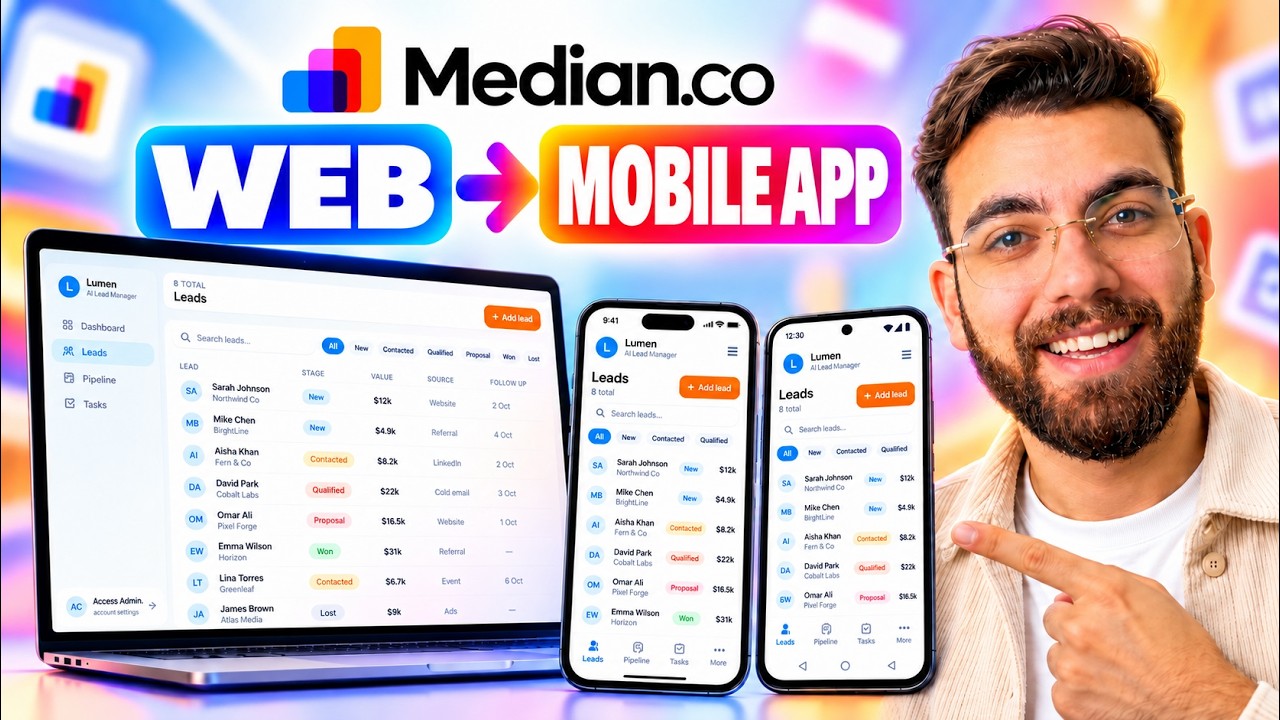
I built an AI lead manager in Lovable, then turned it into a real iOS and Android app with Median.co. Here's every step, from icon to App Store.
On this page
- Watch the video
- The app we're converting
- Step 1: Paste your link into Median.co
- Step 2: Brand it
- Step 3: Test on iOS and Android
- Step 4: Add native navigation
- Step 5: Add native features with plugins
- Step 6: Prepare for the stores
- Step 7: Test on a real phone
- Step 8: Publish
- The takeaway
- Follow along
I built an AI lead manager in Lovable with a single prompt. It works well in the browser, but it's still just a website: nobody can download it, and it doesn't live on anyone's home screen. This is my full web app to mobile app process: turning that Lovable build into a real iOS and Android app with Median.co, without writing code.
Watch the video
The app we're converting
The lead manager has:
- Sign-in and a Supabase database
- Lead management with stages, sources, deal values and follow-up dates
- Tasks sorted into overdue, today, upcoming and completed
- A dashboard showing new leads, closed leads, contacts and qualified leads
Lovable even added design touches I didn't ask for, like blurring the background when the "add lead" form opens.
Step 1: Paste your link into Median.co
Copy your Lovable app's URL, paste it into median.co and click Build your app. Median picks a name from your site automatically. I shortened mine, then clicked Start building my app. A few seconds later, the app was running in an iPhone simulator.
Step 2: Brand it
- App icon: replace the Lovable logo with your own. iOS and Android shape icons differently, so check both and zoom or crop until it looks right.
- Splash screen: this is the first thing people see when the app opens.
If you're unsure about any setting, click the documentation button next to it, or ask Median's built-in AI assistant.
Step 3: Test on iOS and Android
Switch the simulator between iPhone and Android, pick different devices (Pixel 4 through Pixel 9) and Android versions, or view both side by side. I signed in, added a lead and went through every screen. Everything worked, and the layout was already optimized for mobile.
Step 4: Add native navigation
This is what makes it feel like an app instead of a website in a frame:
- Top navigation bar: choose when it shows, whether it stays visible while scrolling, light or dark theme, and whether it shows text or your app icon. I used the icon.
- Sidebar menu: a hamburger menu with links to key screens. I added Dashboard and Leads.
- Bottom tab bar: Lovable had built one, but it's better to create it in Median. It gives the app more flexibility.
- Contextual toolbar: back, forward and refresh buttons, on every page or only specific ones.
Keep navigation simple. People should understand your app without thinking about it.
Step 5: Add native features with plugins
Median has plugins for the things people expect from a real app:
- Push notifications with OneSignal or Firebase Cloud Messaging
- Social login with Google, Facebook and Apple
- App review prompts (needs your App Store ID)
- Face ID, Touch ID and Android biometrics
- QR and barcode scanning, offline downloads, NFC and more
Click the + next to a plugin to add it, then activate it with the required ID. Every plugin has step-by-step docs.
Step 6: Prepare for the stores
Even experienced developers miss things that get apps rejected. Median has an App Store publishing checklist for both Apple and Google, plus a Figma template with around 30 designs for store screenshots. Drop your screenshots in, edit the text, export, done.
Step 7: Test on a real phone
Rebuild the app after your changes, then download the Android APK and install it. My app appeared on my home screen with its own icon and worked exactly like it did in the simulator.
Step 8: Publish
For iOS, click Configure and follow Median's guide to connect your App Store Connect account with an API key, issuer ID and private key. Google Play follows a similar guided process.
The takeaway
This used to take a team of 10 to 15 people and a lot of time. Now you can take a Lovable build from web app to mobile app in minutes, without looking at code. If you're planning to do this, my coupon code gets you 15% off Median. The link is in the video description.
If your web app is a CRM, here's how I build custom CRMs with Claude instead of paying for GoHighLevel. And if you're new to connecting AI to your tools, start with what MCP is.
Want to build and sell apps like this to clients? That's what I teach inside AI Engineer Academy. See what's inside.
Follow along
- YouTube: @AgenticAli
- LinkedIn: Ali Amin
- X: @AgenticAli
- Instagram: @agenticali
- Skool: AI Engineer Academy
Keep building.
Ali Amin