Build a pharmacy ERP system for free with AI (step by step)
Businesses pay thousands for ERP software. Here's how I built a working pharmacy ERP with AI for free, with Google Sheets as the database and Vercel hosting.
On this page
- Watch the video
- What an ERP system actually is
- Why this is a real business opportunity
- The stack
- Step 1: Write the prompt and build
- Step 2: Connect Google Sheets (one-time setup)
- Step 3: Make it fully functional
- Step 4: Test it like a pharmacy would
- Step 5: Deploy it so it works anywhere
- The takeaway
- Follow along
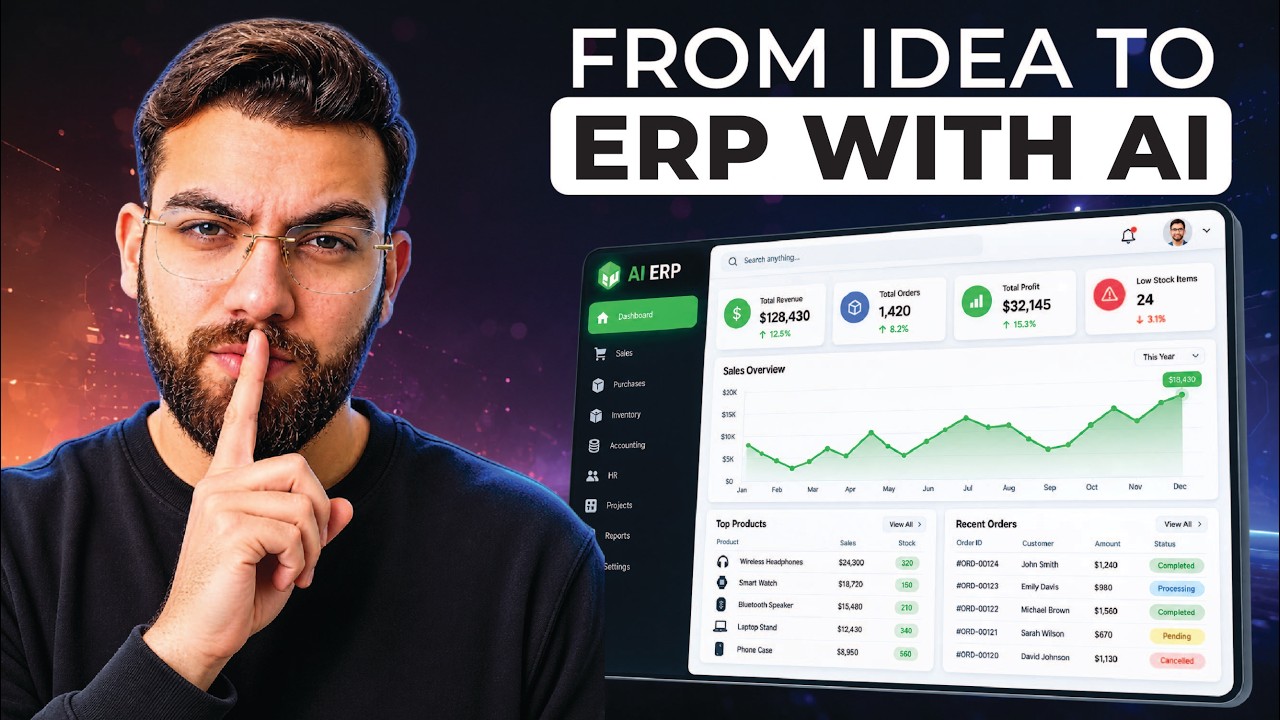
Businesses pay thousands of dollars for ERP software. In this post I'll show you how to build a working pharmacy ERP system with AI, for free: sales, medicines, batches and expiry dates, invoices, customers and suppliers in one place, with Google Sheets as the database and free hosting on Vercel.
Watch the video
▶ Watch "Build a Professional ERP System for Free with AI (Step-by-Step)" on YouTube
What an ERP system actually is
An ERP brings an entire business into one place. Instead of customers in one tool, inventory somewhere else, employees in a spreadsheet and sales on another platform, everything lives in a single system, so you can see what's actually happening in the business.
Why this is a real business opportunity
Look at eCount, an ERP company focused on accounting. Their plans are subscriptions, around $165 for three months or $330 for six, and they say they serve more than 80,000 clients. Their website isn't fancy. It doesn't need to be.
The lesson: be niche-specific. Build an ERP for pharmacies, or for real estate agencies, so a visitor instantly knows it's made for them. Once you've built it for one niche, you can sell the same system again and again. That's a SaaS product.
The stack
- Google AI Studio to build the app (VS Code or Antigravity work too)
- Google Sheets as the database, connected through a Google Cloud service account
- GitHub to store the code
- Vercel to host it for free
I have a separate video on why I use Google Sheets as a database instead of tools like Supabase or Firebase for projects like this.
Step 1: Write the prompt and build
I had ChatGPT write a detailed prompt for a pharmacy ERP: front end, back end, and Google Sheets as the database through a service account, plus the environment variables it would need.
In Google AI Studio, click New app, paste the prompt and click Build. AI Studio asks you to pick a design style. I chose a dark, high-density layout. The result included a dashboard with charts, point of sale, medicines, batches and expiry, purchases, invoices, customers and suppliers.
Step 2: Connect Google Sheets (one-time setup)
- Create a blank Google Sheet. Don't add any columns. The system creates everything.
- Create a Google Cloud project at console.cloud.google.com and copy the project ID.
- Add it as a secret in AI Studio under Settings → Secrets. Copy the variable name exactly from the app, because the code already expects it.
- Enable the Google Sheets API under APIs & Services → Library.
- Create a service account under Credentials → Create credentials → Service account. Copy its email and add it as the client email secret.
- Create a key for the service account (Keys → Add key → Create new key). Open the downloaded file, copy the private key from the BEGIN line to the END line, and add it as a secret. Keep that file private.
- Share your Google Sheet with the service account email as an Editor. This "bot" is the bridge between your ERP and your sheet.
- Copy the Sheet ID from the sheet's URL and add it as the last secret.
Step 3: Make it fully functional
Click the sheet sync option and let it auto-create the missing tabs. Then ask the AI to remove the dummy data and setup labels, and make every feature work for real.
Step 4: Test it like a pharmacy would
Add a medicine: brand name, generic name, strength (500 mg), purchase cost $5, selling price $10, batch number, quantity 20 and an expiry date. It appeared in the ERP immediately, and in Google Sheets in real time.
Make a sale: search the product, set the quantity to 2, mark it as a walk-in customer, apply tax and a $2 discount, take cash and complete the sale. You can print an invoice or a thermal receipt.
Check the dashboard: today's sales, today's profit, and expiring batches with the days remaining.
You manage everything from the ERP. The Google Sheet is just the database behind it.
Step 5: Deploy it so it works anywhere
- In AI Studio, open Settings → GitHub, create a new repository and push your code.
- Create a free account at vercel.com, add a new project and import the repository from GitHub. Click Deploy.
- Add your secrets as environment variables in Vercel. You can copy each value from AI Studio.
- Redeploy to production. Your ERP is now live and usable from any device.
The takeaway
This pharmacy ERP system is a real, scalable product you could sell to pharmacies today, and the same approach works for any niche. Want it on phones too? Here's how I turn a web app into a mobile app. And for a broader client system, see my custom CRM that replaces GoHighLevel.
If you want to become a technical expert in AI web development, my community takes you from beginner to pro: AI Engineer Academy. Here's what's inside.
Follow along
- YouTube: @AgenticAli
- LinkedIn: Ali Amin
- X: @AgenticAli
- Instagram: @agenticali
- Skool: AI Engineer Academy
Keep building.
Ali Amin